
How to Build a Lead Capture to CRM Automation Workflow Using n8n (Step-by-Step Guide)
Introduction – n8n lead capture to CRM automation
Every business that generates leads — whether through a website form, Instagram DM, WhatsApp inquiry, or Facebook ad — faces the same silent problem: leads slip through the cracks. A potential customer fills out a form at 11 PM, and by the time someone on the sales team notices it the next afternoon, that lead has already messaged three competitors. Studies across industries consistently show that businesses which respond to a new lead within five minutes are dramatically more likely to convert that lead into a customer than those who take an hour or more.
This is exactly the kind of problem that n8n, a powerful open-source workflow automation tool, was built to solve. In this guide, we’ll walk through a complete, real-world small project: building a Lead Capture →CRM →Auto Follow-up (Email/WhatsApp) workflow using n8n — from the business problem, to the technical build, to how you can offer this as a service to small businesses.
This article is written for two audiences: business owners who want to understand what’s possible, and freelancers or automation consultants who want a practical, replicable project they can build, demo, and sell.
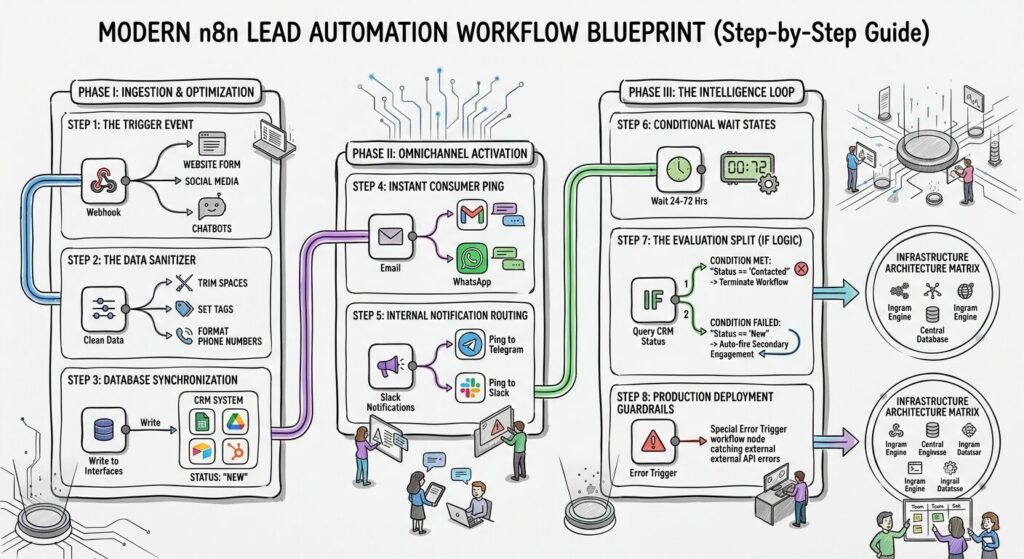
Why Lead Capture Automation Matters for Small Businesses – n8n lead capture to CRM automation
Before diving into the technical build, it’s worth understanding why this project has such strong demand.
The Common Pain Points
- Delayed response time — A lead fills out a form, but the sales rep only checks their inbox once a day.
- Leads scattered across channels — Some leads come from the website, some from Instagram, some from WhatsApp, some from a Facebook ad. Nobody has a single view of all of them.
- No follow-up system — A lead who doesn’t respond to the first message is simply forgotten.
- Manual data entry errors — Sales reps copy-paste lead details into a spreadsheet or CRM, and information gets lost or duplicated.
- No accountability — Without a system, nobody knows which lead was contacted, when, or by whom.
Each of these problems is solvable with a well-designed automation — and none of them require expensive enterprise software. This is exactly the gap that a small, targeted n8n workflow can fill for local businesses, real estate agents, insurance advisors, coaches, clinics, and e-commerce sellers.
Why n8n Specifically
n8n stands out among automation tools (like Zapier or Make) for a few reasons that matter especially for freelancers and small businesses:
- Self-hostable and cost-effective — You can run n8n on a low-cost VPS instead of paying per-task pricing, which matters a lot for small businesses with tight budgets.
- Visual, node-based workflow builder — Easy to demo to non-technical clients; they can literally see the lead moving through each step.
- Extensive integrations — Native nodes for Google Sheets, HubSpot, Airtable, Gmail, Twilio, WhatsApp Business API, Slack, and hundreds of other tools.
- Custom logic with code nodes — When a built-in node isn’t enough, you can drop in JavaScript for full flexibility.
- Open-source and transparent — Businesses aren’t locked into a black-box SaaS tool; the workflow itself is portable.
Project Overview: What We’re Building
The workflow we’ll build has four core stages:
- Capture — A new lead submits a form (website, landing page, or social media lead ad).
- Store — The lead’s details are automatically added to a CRM or CRM-like system (Google Sheets, Airtable, or a proper CRM like HubSpot).
- Notify & Respond — An instant auto-reply is sent to the lead via email and/or WhatsApp, confirming receipt and setting expectations.
- Follow-up — If the lead doesn’t respond or convert within a set time window, an automated follow-up sequence kicks in — a reminder email or WhatsApp message, and optionally a notification to the sales rep to call manually.
This project is intentionally scoped to be small enough to build and demo within a week, yet valuable enough that a real business would pay for it.
Prerequisites
Before starting, here’s what you’ll need:
- An n8n instance — Either self-hosted (via Docker or a VPS) or the n8n Cloud free/starter tier.
- A lead source — A simple web form (Typeform, Google Forms, a custom HTML form, or a landing page builder like Carrd or WordPress with Elementor).
- A CRM destination — For a small business demo, Google Sheets or Airtable works perfectly. For more advanced clients, HubSpot or Zoho CRM.
- An email sending method — Gmail, SMTP, or a transactional email service like SendGrid.
- A WhatsApp sending method — Twilio’s WhatsApp API or the official WhatsApp Business Cloud API (Meta). Both require some setup, but Twilio’s sandbox is the fastest way to prototype.
None of these require significant spend — most have generous free tiers, which is ideal when you’re building your first few projects with zero capital.
Step-by-Step: Building the Workflow in n8n
Step 1: Set Up the Trigger — Capturing the Lead
The workflow needs a starting point that fires the moment a new lead comes in. In n8n, this is typically done using one of these trigger nodes:
- Webhook node — The most flexible option. Any form tool that supports webhooks (Typeform, Tally, custom HTML forms, landing page builders) can send data directly to this URL the moment someone submits.
- Google Sheets Trigger — If leads are being manually added to a sheet or coming from a Zapier-connected form, this node can poll for new rows.
- Gmail/Email Trigger — Useful if leads come in as email inquiries (e.g., “Contact Us” forms that send an email instead of a webhook).
For most small business use cases, the Webhook trigger is the cleanest approach because it’s instant — there’s no polling delay, and it works with almost any modern form tool.
Practical tip: When you build the demo project, use a simple free-tier tool like Tally.so or a basic HTML form connected via webhook. This keeps your prototype fast to build and easy to demo live.
Step 2: Validate and Clean the Lead Data
Real-world form submissions are messy — inconsistent phone number formats, missing fields, or extra whitespace. Before pushing data into a CRM, it helps to add a Set node or a Code node to:
- Standardize phone numbers into a consistent format (important for WhatsApp API calls, which require the international format)
- Trim whitespace from names and emails
- Add default values (e.g., a “lead source” tag showing where the lead came from)
- Add a timestamp for when the lead was captured
This step is often skipped by beginners, but it’s what separates a hobby project from something that behaves reliably in production for a paying client.
Step 3: Push the Lead into the CRM
Next, connect a node to write the lead into your storage system of choice:
- Google Sheets node — Add a new row with the lead’s name, email, phone, source, and timestamp. Simple, visual, and something clients can open and check anytime without logging into new software.
- Airtable node — A step up from Sheets, with better filtering, views, and the ability to track lead status (New, Contacted, Follow-up Sent, Converted, Lost) using a dropdown field.
- HubSpot/Zoho CRM node — For clients who already use a CRM, mapping fields directly into contacts/deals is the professional approach.
At this stage, it’s worth adding a status field (e.g., “New”) that later steps in the workflow will update — this is what makes the automation genuinely useful rather than a one-time data dump.
Step 4: Send the Instant Auto-Reply
This is the step that delivers the most visible value to a business owner, because it directly addresses the “instant response” problem.
- Email auto-reply — Use the Gmail or SMTP node to send a warm, personalized confirmation (“Hi [Name], thanks for reaching out — we’ll be in touch within 24 hours.”). Personalize using the lead’s name from the form data.
- WhatsApp auto-reply — Using Twilio’s WhatsApp node or the Meta WhatsApp Business API node, send a similar message directly to the lead’s phone number. WhatsApp typically has far higher open rates than email, especially for local businesses in India.
For businesses whose customers primarily communicate via WhatsApp (real estate, local services, coaching), this single step often creates the most obvious “wow” moment when you demo it live — a form submission followed by an instant WhatsApp message within seconds.
Step 5: Notify the Sales Rep or Business Owner
Alongside replying to the lead, the workflow should alert the human who needs to follow up manually. This can be:
- A Slack or WhatsApp message to the business owner: “New lead: [Name], [Phone] — Source: Instagram Ad”
- An internal email
- A Telegram bot message (popular for small business owners who prefer Telegram’s simplicity)
This ensures no lead is “automated and forgotten” — humans stay in the loop for the actual sales conversation, while automation handles the busywork of routing and instant acknowledgment.
Step 6: Build the Follow-Up Sequence
This is where the workflow goes from “nice” to “genuinely valuable.” Use n8n’s Wait node combined with conditional logic:
- Wait node — Pause the workflow for a set period (e.g., 24 hours).
- Check status — Query the CRM (Google Sheets/Airtable) to see if the lead’s status has changed to “Contacted” or “Converted.”
- Conditional branch (IF node):
- If status is still “New” → send a follow-up email/WhatsApp message (“Hi [Name], just checking in — did you have any questions about [service]?”)
- If status has changed → end the workflow, no further action needed.
- Repeat once more — A second follow-up after another 48–72 hours is often the sweet spot before marking a lead as “cold.”
This follow-up logic is what most small businesses are not doing manually, and it’s often the single biggest driver of recovered sales that would otherwise have been lost.
Step 7: Testing the Workflow End-to-End
Before showing this to any client, test thoroughly:
- Submit test leads with different data patterns (missing phone number, unusual characters in the name, international phone formats)
- Confirm the CRM row is created correctly every time
- Confirm both email and WhatsApp messages send correctly and render properly on mobile
- Test the wait/follow-up logic using a shortened wait time (e.g., 2 minutes instead of 24 hours) during development, then switch to real durations before going live
Step 8: Deployment Considerations
For a live client project, a few production details matter:
- Error handling — Add an Error Trigger workflow in n8n so that if any step fails (e.g., WhatsApp API is down), you get notified instead of silently losing leads.
- Rate limits — WhatsApp Business API and email providers have sending limits; make sure your workflow respects them, especially for businesses running paid ad campaigns that generate spikes of leads.
- Data privacy — Since you’re handling personal contact information, be transparent with clients about where data is stored and ensure basic consent language exists on the lead capture form.
- Uptime — If self-hosting n8n, use a reliable VPS provider and consider basic monitoring so the workflow doesn’t silently go down.
Real-World Use Cases Across Industries
The beauty of this project is that the same core workflow adapts to almost any lead-generation business with small tweaks:
- Real estate agents — Capture inquiries from property listing sites, instantly send property brochures via WhatsApp, and follow up with site-visit reminders.
- Insurance and loan advisors — Capture policy/loan inquiries, send instant eligibility information, and follow up before the lead approaches a competitor.
- Coaches and course creators — Capture sign-ups from a landing page, send a welcome sequence, and follow up with a free session invite if the lead hasn’t booked.
- Clinics and salons — Capture appointment inquiries, confirm availability instantly, and send follow-up reminders for unbooked inquiries.
- D2C and e-commerce sellers — Capture abandoned inquiries from Instagram/WhatsApp Business catalog chats and follow up with personalized offers.
Each of these represents a potential client for a freelancer offering n8n automation — and each requires only minor changes to the same underlying blueprint above.
Common Mistakes to Avoid
When building and selling this kind of project, a few mistakes come up repeatedly:
- Over-engineering the first version — Clients don’t need a 20-step workflow on day one. Start with capture → CRM → instant reply, prove value, then layer in follow-ups and advanced logic.
- Ignoring data validation — Messy phone numbers or missing fields will break WhatsApp/email sends. Always sanitize input data.
- No error notifications — If a workflow fails silently, the client loses trust immediately when they realize leads were missed for days.
- Forgetting mobile experience — Most small business leads read messages on their phones. Test how your emails and WhatsApp messages actually look on a phone screen, not just in n8n’s execution log.
- Not tracking lead status — Without a status field, follow-up logic has nothing to check against, and the automation can’t distinguish a converted lead from a cold one.
How to Turn This Project Into a Freelance Offer
If you’re building this as a portfolio piece to offer as a service, here’s how to position it:
- Build a demo video — Record a 2-minute screen capture showing a test lead submission, followed by the instant WhatsApp/email reply, and the CRM row appearing in real time. This single video is often more persuasive than any written pitch.
- Price it as an outcome, not an hourly task — Frame the offer as “Never lose another lead to slow follow-up” rather than “I’ll build you an n8n workflow.” Business owners care about outcomes, not tool names.
- Start with a low-friction pilot — Offer to build this for one business at an affordable, fixed price, with the follow-up sequence add-on priced separately. This lowers the barrier to a first “yes.”
- Ask for a testimonial and referral — Once a pilot succeeds, a genuine testimonial and even one referral from a small business owner can open doors to their entire network — real estate agents know other real estate agents, and insurance advisors know other advisors.
Conclusion
The Lead Capture → CRM → Auto Follow-up workflow is one of the most practical and demand-relevant projects you can build with n8n today. It solves a universal, relatable problem — lost or delayed leads — using tools that are affordable or free to start with, and it’s visually easy to demo to non-technical business owners.
For anyone starting out with zero capital, this project is ideal precisely because it requires no upfront spending, only your time to learn n8n’s core nodes (Webhook, Set, Google Sheets/Airtable, Email, WhatsApp/Twilio, Wait, IF) and apply them to a real business problem. Once built and demoed once, the same blueprint can be adapted repeatedly across industries — real estate, insurance, clinics, coaching, and e-commerce — making it a strong, reusable foundation for an automation freelancing business.
Frequently Asked Questions
1. Do I need to know how to code to build this in n8n? No. Most of this workflow can be built using n8n’s visual, drag-and-drop nodes. Basic JavaScript knowledge helps for data cleaning steps, but it isn’t mandatory to get started.
2. Is n8n free to use? n8n offers a free, self-hosted option (you only pay for hosting, which can cost as little as a few dollars a month on a basic VPS) as well as a paid cloud version. For learning and building your first client projects, self-hosting is a cost-effective starting point.
3. Can this workflow send WhatsApp messages without WhatsApp Business API? Technically, some workarounds exist using third-party WhatsApp automation tools, but for reliable, policy-compliant sending, using Twilio’s WhatsApp API or Meta’s official WhatsApp Business Cloud API is strongly recommended, especially for client-facing work.
4. How long does it take to build this workflow from scratch? A basic version (capture → CRM → instant email/WhatsApp reply) can realistically be built in a few hours once you’re familiar with n8n. Adding the full follow-up sequence with conditional logic typically takes a few additional hours of testing and refinement.
5. What’s the best CRM to use for a small business demo? Google Sheets or Airtable are ideal for demos and small clients because they’re familiar, visual, and require no additional software purchase. For clients with larger sales teams, integrating directly with HubSpot or Zoho CRM is a better long-term fit.
6. Can I scale this workflow to handle multiple lead sources at once? Yes. You can add multiple webhook triggers (or a single webhook with a “source” field) so leads from your website, Instagram, and Facebook ads all flow into the same CRM and follow-up logic, giving the business a single unified pipeline instead of scattered leads across channels.




One Comment